qbittorrent-nox is qBittorrent without a graphical interface: the same torrent engine, controlled through its Web UI. On a Mac it runs as a background service. It starts when you log in, keeps downloading and seeding with no window open and doesn’t take up space in the Dock. You manage it from Lizard, a native Mac app for qBittorrent, or from a browser.
The qBittorrent team publishes only the desktop app for macOS and itself describes that version as “barely supported”. Homebrew has no qbittorrent-nox formula — as of October 2026, even its qbittorrent cask is disabled. This guide covers every way to run qbittorrent-nox on a Mac, from one click to building it from source.
- Which method to choose
- Method 1: One click with Lizard
- Moving from the qBittorrent app
- Method 2: Build from source
- Method 3: Build with Homebrew libraries
- Run qbittorrent-nox in the background
- Method 4: Docker
- Keep your Mac awake
- Troubleshooting
Which Method to Choose
| Lizard | Build from source | Homebrew libraries | Docker | |
|---|---|---|---|---|
| Time | About a minute | About 5 minutes: Qt, OpenSSL and libtorrent are compiled too | About 2.5 minutes: only libtorrent and qBittorrent are compiled | About a minute |
| You’ll need | macOS 14 or later | Xcode and Homebrew | Command Line Tools and Homebrew | Docker Desktop or OrbStack |
| Terminal | Not needed | Basic commands | Basic commands | Docker |
| What you get | qBittorrent 5.2.4 signed and notarized by Apple | A self-contained binary | A binary that depends on Homebrew | Linux qBittorrent in a container |
| Starts at login | Set up automatically | With a LaunchAgent | With a LaunchAgent | With Docker |
| Updates | Reinstall in Lizard | Rebuild | Rebuild when Homebrew updates its libraries | Pull a new image |
Times were measured on a Mac with M4 Pro and don’t include installing Xcode, Homebrew or Docker. Downloads depend on your connection, and on an older Mac compiling takes longer.
Method 1: One Click with Lizard
Lizard installs qbittorrent-nox, runs it in the background and connects to it. You never have to edit a config file or open the Web UI.
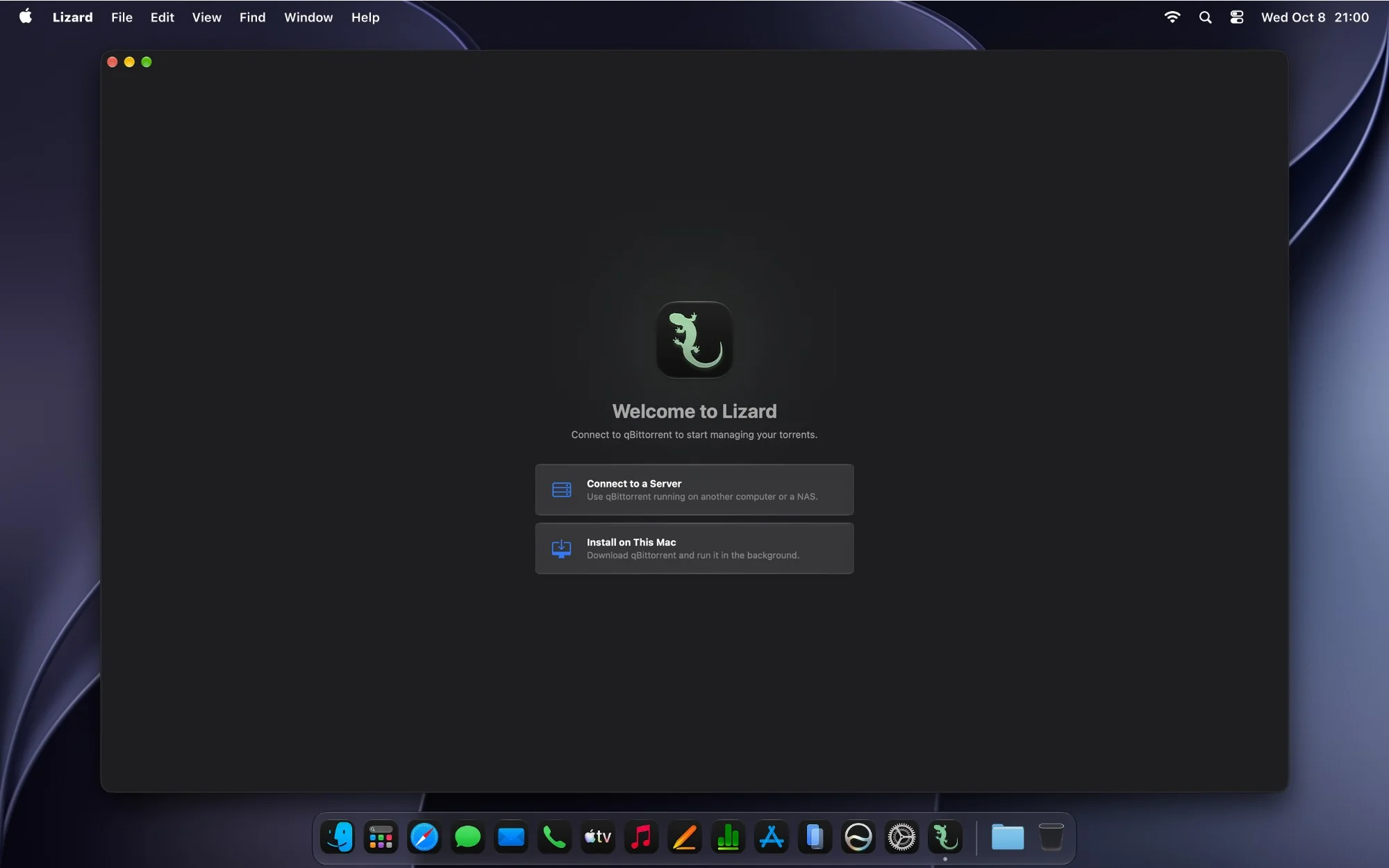
- Download Lizard and open it. On the welcome screen, choose Install on This Mac.
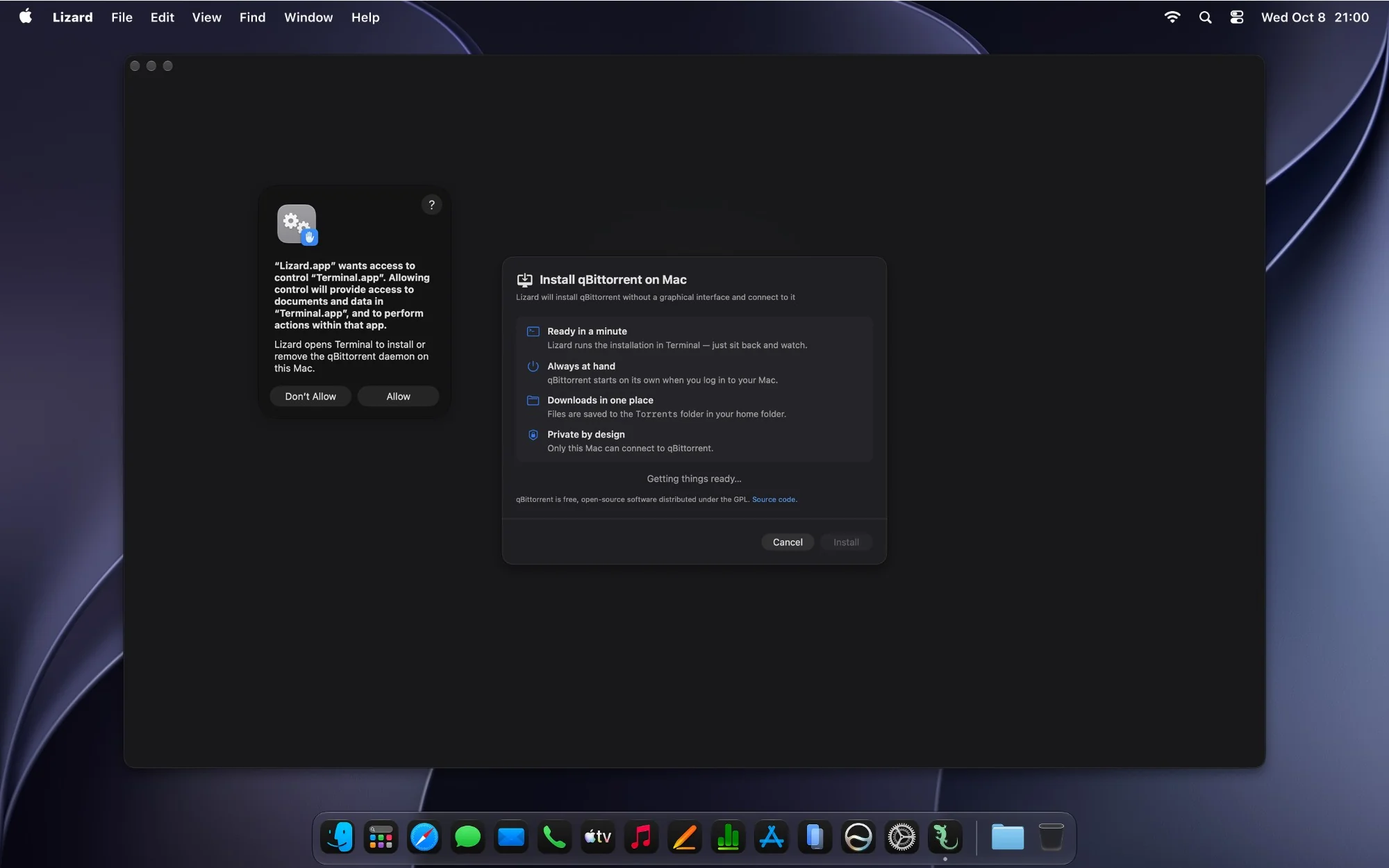
- Read what’s going to happen and click Install.
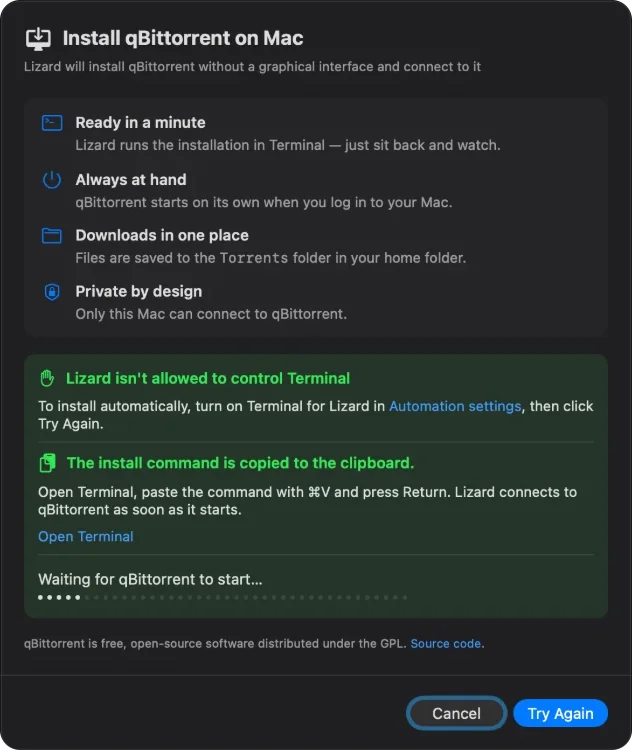
- Lizard asks to control Terminal. Click Allow. Lizard is sandboxed, like apps from the Mac App Store, so it can’t start background services by itself. Instead, it types a single install command into Terminal.
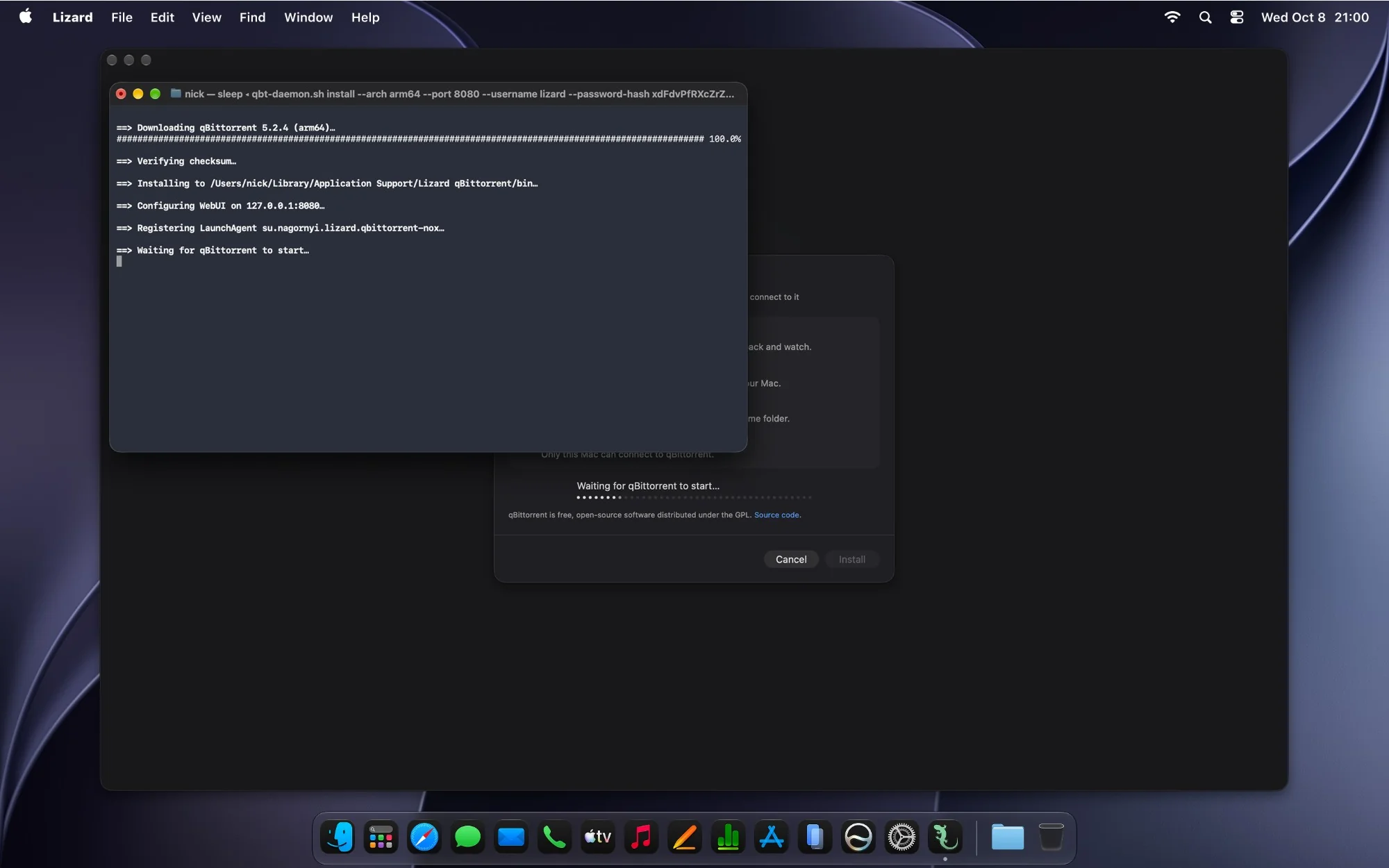
- Terminal shows every step: it downloads qBittorrent, verifies its checksum, installs it, configures the Web UI and registers a background service. It usually takes about a minute.
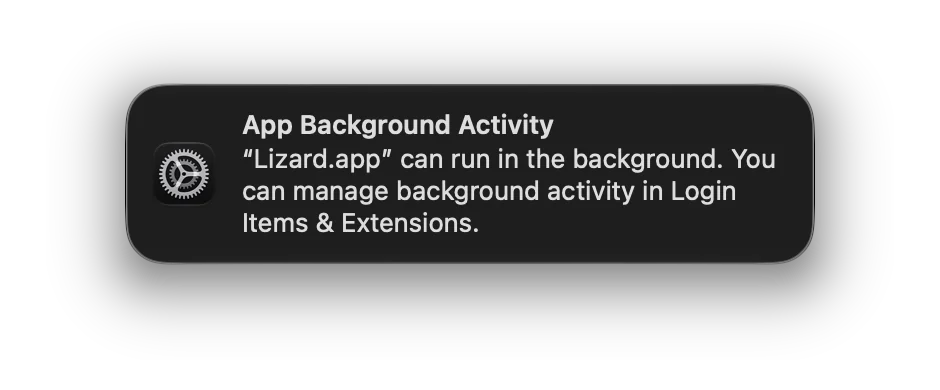
- As soon as qBittorrent starts, Lizard connects to it, and you can add torrents. macOS shows a notification that Lizard can run in the background: that’s qBittorrent. It’s listed under Lizard in System Settings → General → Login Items & Extensions.
- macOS asks whether to allow qbittorrent-nox to find devices on local networks. Lizard itself doesn’t need this, but qBittorrent does. Click Allow: without it, qBittorrent can’t open a port on your router through UPnP or NAT-PMP or connect to peers on your local network. Its Web UI still accepts connections only from this Mac. If you clicked Don’t Allow, turn on qbittorrent-nox in System Settings → Privacy & Security → Local Network.
If You Clicked Don’t Allow
Lizard copies the install command to the clipboard. Open Terminal, paste the command with ⌘V and press Return. Lizard connects as soon as qBittorrent starts.
To let Lizard run the installation by itself, turn on Terminal for Lizard in System Settings → Privacy & Security → Automation, then click Try Again.
What Lizard Sets Up
| Where | |
|---|---|
| qbittorrent-nox | ~/Library/Application Support/Lizard qBittorrent/bin |
| qBittorrent settings | ~/Library/Application Support/Lizard qBittorrent/qBittorrent/config |
| Downloads | ~/Torrents, or any folder you choose in Lizard’s Settings → Downloads |
| Log | ~/Library/Logs/Lizard qBittorrent/qbittorrent-nox.log |
| Background service | ~/Library/LaunchAgents/su.nagornyi.lizard.qbittorrent-nox.plist |
| Web UI | 127.0.0.1, the first free port from 8080 to 8099 |
Private by Design
qBittorrent installed by Lizard accepts connections only from this Mac. During installation, Lizard generates a random password, keeps it in your Keychain and passes only its hash to qBittorrent, so the password can’t be looked up anywhere. No other app, browser or device on your network can control your qBittorrent — and for the same reason, its Web UI can’t be opened in a browser. RSS feeds and torrent search, the features people open the Web UI for, are planned for future versions of Lizard.
The binary is built from the unmodified qBittorrent source code, signed with a Developer ID and notarized by Apple, and Lizard verifies its SHA-256 checksum before installing. The macOS firewall doesn’t ask about incoming connections: signed software is allowed to receive them by default. qBittorrent is free software under the GPL — here is the complete source code of this build, together with the script that builds it.
Update or Repair
Some Lizard updates include a newer qBittorrent. To install it, or to repair qBittorrent if something went wrong, open the server menu in the toolbar and choose Reinstall qBittorrent…. Your torrents, downloads and settings stay.
Uninstall
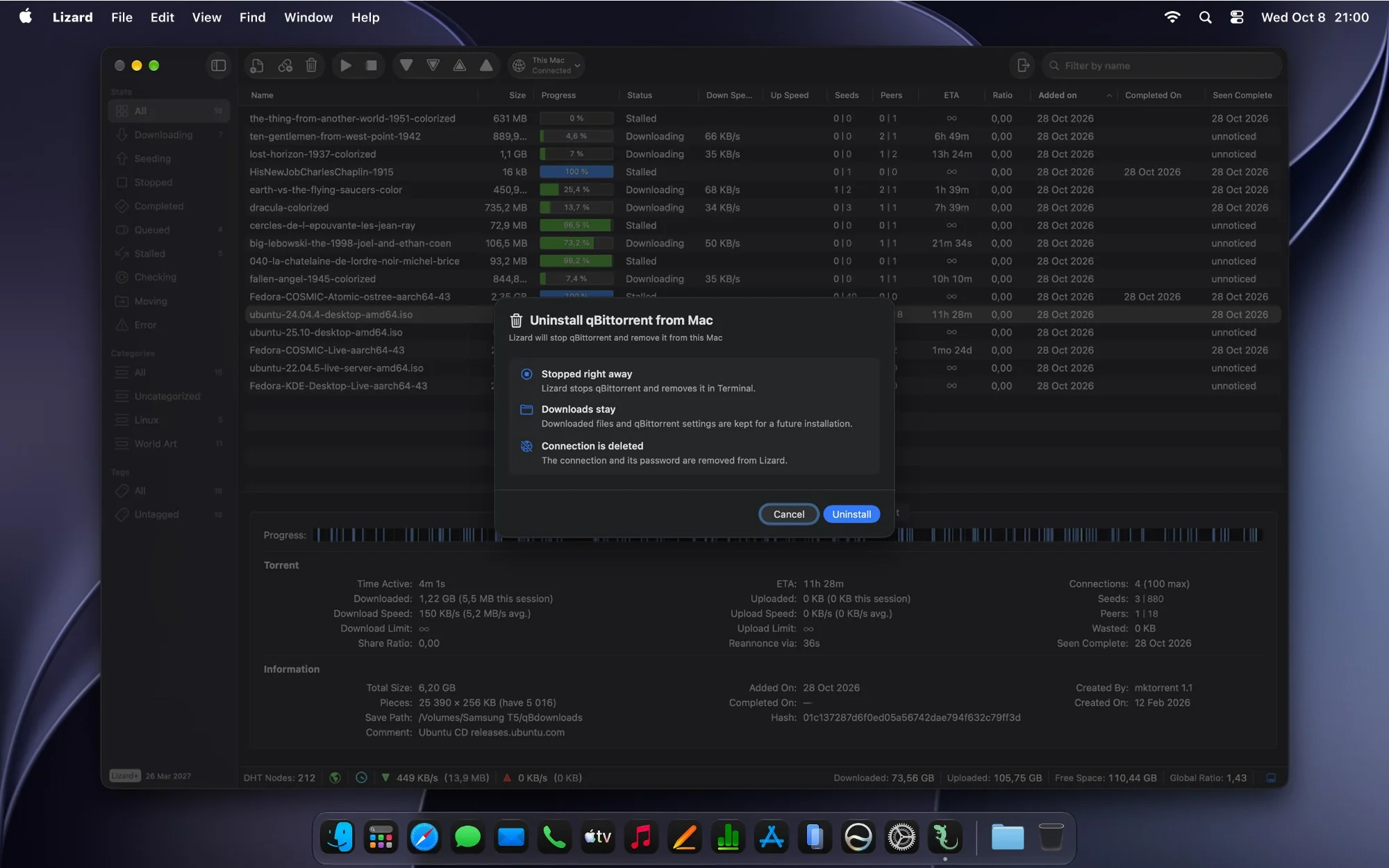
On macOS 15 or later, open the server menu in the toolbar, hold Option and choose Delete from This Mac…, then click Uninstall. Lizard stops qBittorrent and removes it in Terminal. Your downloads and qBittorrent settings are kept, and the connection and its password are deleted from Lizard.
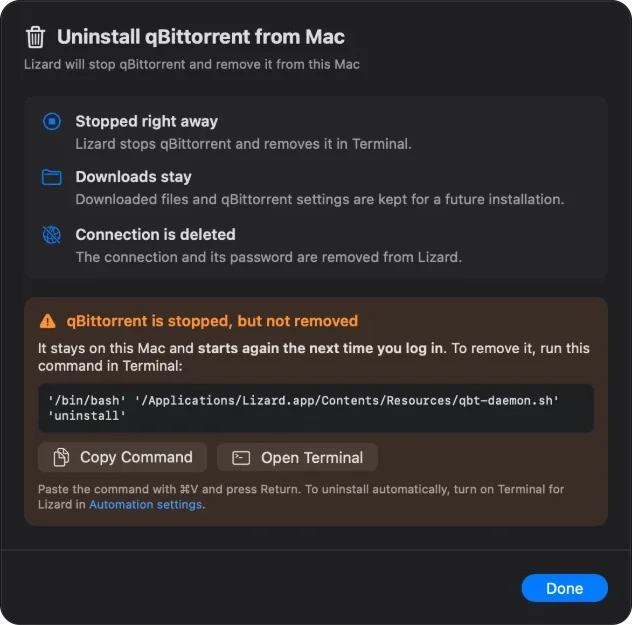
If Lizard isn’t allowed to control Terminal, it stops qBittorrent right away and shows the command that finishes the job. Until you run it, qBittorrent stays on your Mac and starts again the next time you log in.
On macOS 14, run the same command in Terminal, then delete the This Mac connection in Lizard’s Settings → Servers. An uninstall button for macOS 14 is coming in a future version of Lizard.
/bin/bash /Applications/Lizard.app/Contents/Resources/qbt-daemon.sh uninstallTo also remove qBittorrent’s settings and log, run the command below. Your downloads in ~/Torrents stay where they are.
rm -rf ~/Library/Application\ Support/Lizard\ qBittorrent ~/Library/Logs/Lizard\ qBittorrentMoving from the qBittorrent App
qBittorrent installed by Lizard doesn’t need the old app’s data. Point it to the files you’ve already downloaded, and it checks them by itself.
- Install qBittorrent with Lizard, as described above.
- In Lizard, open Settings → Downloads and set Default Save Path to the folder where the qBittorrent app saves downloads.
- In the qBittorrent app, select all torrents with ⌘A, Control-click them and choose Copy → Magnet link. Then quit the app.
- In Lizard, click Add Link in the toolbar or press ⌘L, paste the links — one per line — and add them.
- qBittorrent finds the existing files and checks them. Finished torrents go straight to seeding, and unfinished ones continue where they stopped. On a modern Mac, the check doesn’t take long.
If your torrents are saved to different folders, add them in groups, changing the default folder in between — or, with Lizard+, choose the folder right in the add dialog. Categories and tags aren’t transferred with magnet links, so assign them again in Lizard. A magnet link needs peers to fetch the torrent’s metadata: if a torrent has none, add its .torrent file instead.
Method 2: Build from Source
This is how the qBittorrent that Lizard installs is built. The unmodified sources of qBittorrent, libtorrent, Qt, OpenSSL and Boost are compiled and linked statically, so the binary depends only on libraries that ship with macOS and keeps working whatever you update in Homebrew.
You’ll need Xcode, plus CMake and Ninja from Homebrew. Command Line Tools alone aren’t enough: Qt checks the Xcode version before building. The App Store offers only the latest Xcode, which needs macOS Tahoe 26.6 or later. For an earlier macOS, download the matching Xcode from Apple Developer — sign in with your Apple Account, it’s free:
- macOS Sonoma 14.0–14.4: Xcode 15.4
- macOS Sonoma 14.5 – macOS Sequoia 15.2: Xcode 16.2
- macOS Sequoia 15.3–15.5: Xcode 16.4
- macOS Sequoia 15.6 – macOS Tahoe 26.5: Xcode 26.3
- macOS Tahoe 26.6 or later: Xcode from the App Store
Open the downloaded .xip file and move Xcode to the Applications folder. Then select it and accept its license:
sudo xcode-select -s /Applications/Xcode.app/Contents/Developer && sudo xcodebuild -license acceptIf you don’t have Homebrew yet, install it. The installer asks for your password:
/bin/bash -c "$(curl -fsSL https://raw.githubusercontent.com/Homebrew/install/HEAD/install.sh)"On a Mac with Apple silicon, then add Homebrew to your PATH, as the installer suggests under Next steps:
echo 'eval "$(/opt/homebrew/bin/brew shellenv)"' >> ~/.zprofile && eval "$(/opt/homebrew/bin/brew shellenv)"Install CMake and Ninja:
brew install cmake ninjaDownload the build script and run it:
curl -fLO https://nagornyi.su/lizard/build-qbittorrent-nox.shchmod +x build-qbittorrent-nox.sh && ./build-qbittorrent-nox.shThe script downloads qBittorrent 5.2.4, libtorrent 2.0.11, Qt 6.8.3, OpenSSL 3.5.0 and Boost 1.88 from their official sites, builds them for your Mac’s architecture and checks that the result links only to system libraries. Most of the time goes to Qt. To build other versions, change the numbers at the top of the script.
The binary ends up in the qbt-build folder. Copy it to a permanent place:
mkdir -p ~/.local/bin && cp qbt-build/qbittorrent-nox ~/.local/bin/Then run it in the background.
Method 3: Build with Homebrew Libraries
This build is faster, because Qt, Boost and OpenSSL come ready-made from Homebrew, and it doesn’t need Xcode: Command Line Tools are enough. There’s a catch: qBittorrent 5.2 supports libtorrent 2.0, while Homebrew already ships 2.1, so libtorrent is built from source, with OpenSSL 3: libtorrent 2.0 doesn’t support OpenSSL 4 yet. The resulting binary depends on Homebrew’s libraries and may need rebuilding after they update.
Install the tools and libraries. If you don’t have Homebrew yet, install it as shown in Method 2:
xcode-select --installbrew install cmake ninja boost openssl@3 qtbase qttoolsDownload libtorrent and qBittorrent:
mkdir -p ~/qbt-brew && cd ~/qbt-brewcurl -LO https://github.com/arvidn/libtorrent/releases/download/v2.0.11/libtorrent-rasterbar-2.0.11.tar.gz && tar -xf libtorrent-rasterbar-2.0.11.tar.gzcurl -L -o qBittorrent-release-5.2.4.tar.gz https://github.com/qbittorrent/qBittorrent/archive/refs/tags/release-5.2.4.tar.gz && tar -xf qBittorrent-release-5.2.4.tar.gzBuild libtorrent. It’s linked statically, so qbittorrent-nox won’t depend on this folder:
cmake -S libtorrent-rasterbar-2.0.11 -B build/libtorrent -G Ninja -DCMAKE_BUILD_TYPE=Release -DBUILD_SHARED_LIBS=OFF -Ddeprecated-functions=OFF -DCMAKE_PREFIX_PATH="$(brew --prefix)" -DOPENSSL_ROOT_DIR="$(brew --prefix openssl@3)" -DCMAKE_INSTALL_PREFIX="$PWD/prefix"cmake --build build/libtorrent && cmake --install build/libtorrentBuild qBittorrent without the GUI:
cmake -S qBittorrent-release-5.2.4 -B build/qbittorrent -G Ninja -DCMAKE_BUILD_TYPE=Release -DGUI=OFF -DSTACKTRACE=OFF -DCMAKE_PREFIX_PATH="$PWD/prefix;$(brew --prefix)" -DOPENSSL_ROOT_DIR="$(brew --prefix openssl@3)"cmake --build build/qbittorrentCopy the binary to a permanent place and check it:
mkdir -p ~/.local/bin && cp "$(find build/qbittorrent -name qbittorrent-nox -type f -perm -u+x | head -n1)" ~/.local/bin/Qt from Homebrew finds its plugins, including TLS, only through the QT_PLUGIN_PATH variable. Without it, qBittorrent prints “No functional TLS backend was found” and HTTPS stops working in the Web UI, RSS and search. Downloading torrents works either way. Add the variable to your shell:
echo "export QT_PLUGIN_PATH=\"$(brew --prefix)/share/qt/plugins\"" >> ~/.zprofile && source ~/.zprofile~/.local/bin/qbittorrent-nox --versionRun qbittorrent-nox in the Background
These steps are for a binary you built yourself. Lizard does all of this on its own.
First Run
Start qbittorrent-nox in Terminal:
~/.local/bin/qbittorrent-nox --profile="$HOME/Library/Application Support/qbittorrent-nox" --confirm-legal-notice--profile keeps this qBittorrent’s settings and torrents apart from the qBittorrent app, if you have it. qBittorrent prints the Web UI address, http://localhost:8080, and a temporary password for the admin user.
Open the address in a browser and sign in. In Tools → Options → Web UI, set your own username and password. To allow connections only from this Mac, set the IP address to 127.0.0.1. Save the settings, then stop qBittorrent with Ctrl-C in Terminal.
Start at Login
A LaunchAgent starts qBittorrent when you log in and restarts it if it quits unexpectedly. Its QT_PLUGIN_PATH is needed for a Method 3 build and does no harm to a Method 2 build. Create one:
mkdir -p ~/Library/LaunchAgents ~/Library/Logscat > ~/Library/LaunchAgents/local.qbittorrent-nox.plist <<EOF
<?xml version="1.0" encoding="UTF-8"?>
<!DOCTYPE plist PUBLIC "-//Apple//DTD PLIST 1.0//EN" "http://www.apple.com/DTDs/PropertyList-1.0.dtd">
<plist version="1.0">
<dict>
<key>Label</key>
<string>local.qbittorrent-nox</string>
<key>ProgramArguments</key>
<array>
<string>$HOME/.local/bin/qbittorrent-nox</string>
<string>--profile=$HOME/Library/Application Support/qbittorrent-nox</string>
<string>--confirm-legal-notice</string>
</array>
<key>EnvironmentVariables</key>
<dict>
<key>QT_PLUGIN_PATH</key>
<string>$(brew --prefix)/share/qt/plugins</string>
</dict>
<key>RunAtLoad</key>
<true/>
<key>KeepAlive</key>
<dict>
<key>SuccessfulExit</key>
<false/>
</dict>
<key>StandardOutPath</key>
<string>$HOME/Library/Logs/qbittorrent-nox.log</string>
<key>StandardErrorPath</key>
<string>$HOME/Library/Logs/qbittorrent-nox.log</string>
</dict>
</plist>
EOFLoad it:
launchctl bootstrap gui/$(id -u) ~/Library/LaunchAgents/local.qbittorrent-nox.plistmacOS then shows a Background Items Added notification: qbittorrent-nox is now listed in System Settings → General → Login Items & Extensions, where you can manage it. It also asks whether to allow qbittorrent-nox to find devices on local networks. Click Allow: without it, qBittorrent can’t open a port on your router through UPnP or NAT-PMP or connect to peers on your local network. Downloading from the internet works either way, and you can change your answer in System Settings → Privacy & Security → Local Network.
Check that qBittorrent is running. Any status code except 000 means its Web UI answers:
curl -s -o /dev/null -w '%{http_code}\n' http://127.0.0.1:8080/api/v2/app/versionIf something’s wrong, look at the log:
tail -n 30 ~/Library/Logs/qbittorrent-nox.logStop or Remove
To stop qBittorrent and keep it from starting at login:
launchctl bootout gui/$(id -u)/local.qbittorrent-noxTo remove it completely, also delete the LaunchAgent and the binary. Settings stay in ~/Library/Application Support/qbittorrent-nox, and downloads stay where qBittorrent saved them.
rm ~/Library/LaunchAgents/local.qbittorrent-nox.plist ~/.local/bin/qbittorrent-noxConnect Lizard
In Lizard, choose Connect to a Server on the welcome screen, or New Connection… in the server menu. Enter localhost, port 8080 and the username and password you set. Show in Finder works through path mapping (Lizard+), just like with a remote server. With qBittorrent installed by Lizard, it works without any setup.
Method 4: Docker
If you already use Docker Desktop or OrbStack, you can run the Linux build of qbittorrent-nox in a container. The popular image is linuxserver/qbittorrent:
docker run -d --name qbittorrent --restart unless-stopped -p 8080:8080 -p 6881:6881 -p 6881:6881/udp -e WEBUI_PORT=8080 -v ~/qbittorrent/config:/config -v ~/Downloads/qBittorrent:/downloads lscr.io/linuxserver/qbittorrent:latestThe temporary Web UI password is in the container log:
docker logs qbittorrentConnect Lizard to localhost:8080. qBittorrent in the container sees your downloads as /downloads, so to open them in Finder, map /downloads to ~/Downloads/qBittorrent in Lizard’s Settings (Lizard+). Keep in mind that Docker on a Mac runs a Linux virtual machine, which takes more memory than a native qbittorrent-nox.
Keep Your Mac Awake
When your Mac sleeps, qBittorrent sleeps with it, and downloads pause until it wakes up. To keep them going:
- Run
caffeinate -iin Terminal. Your Mac won’t go to sleep on its own until you press Ctrl-C, while the display can still turn off. - Use Amphetamine from the Mac App Store: it keeps your Mac awake indefinitely, on a schedule or while a particular app is running.
- On a MacBook, turn on Prevent automatic sleeping on power adapter when the display is off in System Settings → Battery → Options. On a desktop Mac, the similar setting is in System Settings → Energy.
Troubleshooting
Lizard says qBittorrent didn’t respond. Check the Terminal window for errors and the log at ~/Library/Logs/Lizard qBittorrent/qbittorrent-nox.log. Then choose Reinstall qBittorrent… in the server menu.
Lizard isn’t allowed to control Terminal. Paste the copied command into Terminal yourself, or allow Lizard to control Terminal — see If You Clicked Don’t Allow.
The qBittorrent app is “damaged” or “can’t be opened”. That’s Gatekeeper reacting to the self-signed build of the desktop app — see how to open it safely. qBittorrent installed by Lizard is notarized by Apple and doesn’t trigger these warnings.
Port 8080 is taken. Lizard picks the first free port from 8080 to 8099 by itself. For your own build, add --webui-port=8090 to the command or to the LaunchAgent and use that port in Lizard.
zsh: command not found: brew. Homebrew isn’t installed or isn’t in your PATH. Install it and, on Apple silicon, add it to your PATH — see Method 2.
Qt requires at least version 15 of Xcode. The build script found only Command Line Tools. Install Xcode and select it with xcode-select as shown in Method 2. Then delete the build folder left from the failed attempt — the downloaded archives are kept — and run the script again:
rm -rf qbt-build/work && ./build-qbittorrent-nox.shOr use Method 3, which doesn’t need Xcode.
tried including <stdint.h> but didn't find libc++'s <stdint.h> header. The build folder was set up with Command Line Tools, and the script ran again after switching to Xcode. Delete the folder and run the script again with the command above.