The qBittorrent WebUI is the standard way to control qBittorrent on a server, a NAS or in Docker: you open a browser tab and sign in. Lizard connects to the same qBittorrent, but it’s a native Mac app, not a reskin of the WebUI. This page lists what that changes in practice, and when the WebUI is still enough.
Features marked Lizard+ are part of the paid subscription. Everything else is free.
- At a glance
- Servers and connections
- macOS integration
- Adding torrents
- Interface and data
- Energy use
- When the WebUI is enough
At a Glance
| Lizard | qBittorrent WebUI | |
|---|---|---|
| Interface | Native macOS app | Page in a browser tab |
| Servers | Several in one window, switch from the menu | One per browser tab |
| Signing in | Automatic, with passwords from the macOS Keychain | Sign-in page; the browser can save the password |
| After the Mac wakes | Signs in again by itself | You sign in again once the session has expired |
| qBittorrent on this Mac | Installed or removed in one click | Needs qBittorrent that’s already running |
| .torrent files and magnet links | Open from Finder and from your browser | .torrent files are uploaded through the page |
| Show in Finder | Yes, even for remote servers (Lizard+) | No |
| File list before adding | For .torrent files, with any qBittorrent version (Lizard+) | Only with qBittorrent 5.2 or later |
| Works on | A Mac with macOS 14 or later | Any device with a browser |
| Price | Free, some features need Lizard+ | Free, part of qBittorrent |
Servers and Connections
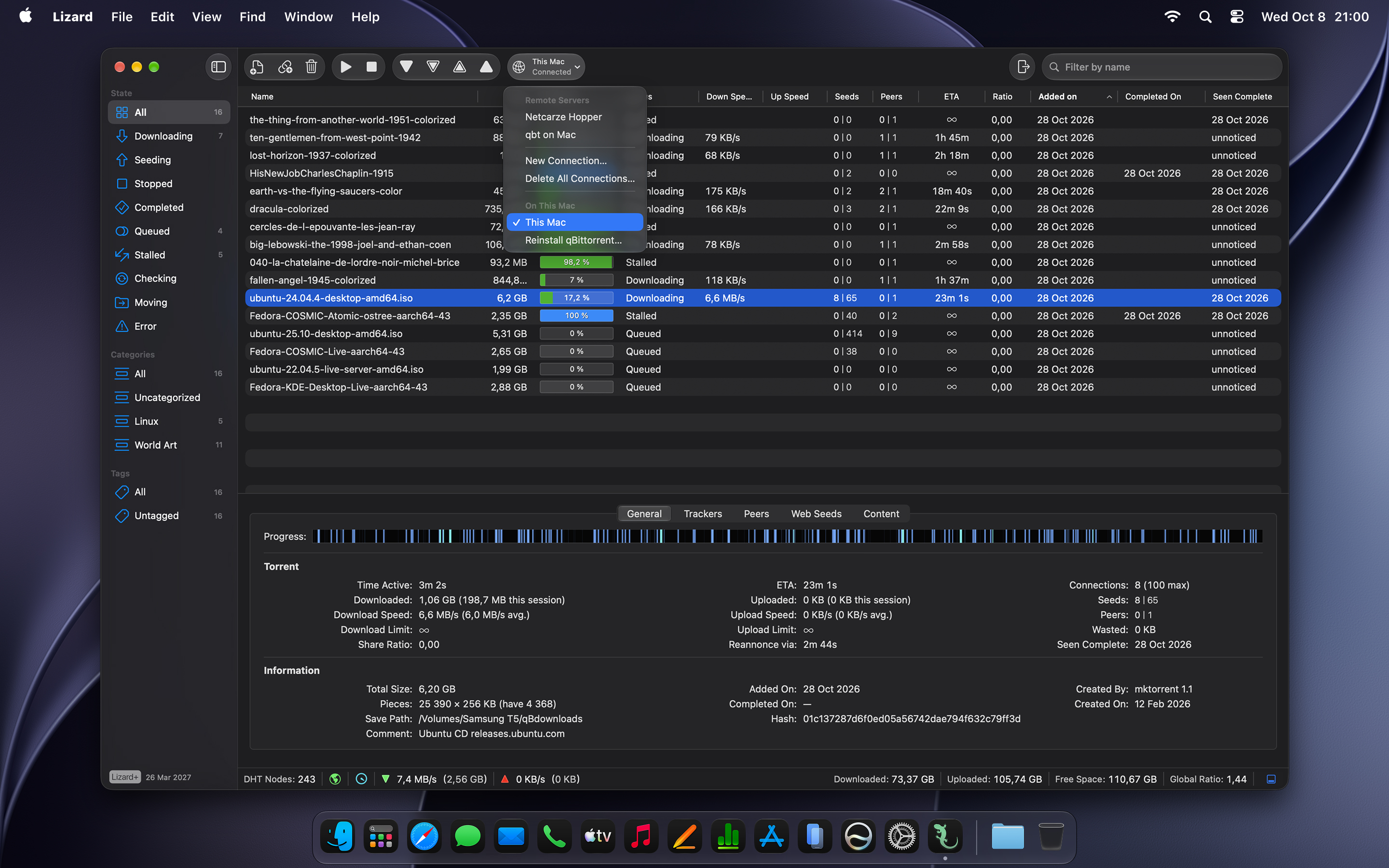
- Several servers in one window. Add as many qBittorrent servers as you need and switch between them from the server menu or the Servers tab in Settings. A WebUI tab is tied to one server.
- Sign-in from the Keychain. Passwords are stored in the macOS Keychain, and Lizard signs in automatically.
- Sleep and wake. Lizard logs out before the Mac sleeps and logs back in after it wakes. If the connection is lost, it reconnects by itself.
- qBittorrent on this Mac. Lizard installs qBittorrent on the Mac in one click and removes it just as easily, so you don’t need a server at all. See How to install qbittorrent-nox on a Mac.
macOS Integration
- Open from anywhere. .torrent files and magnet links open by double-click, from the browser or with Open With.
- Drag and drop files into the window.
- Show in Finder (Lizard+), also by double-clicking a torrent. For a remote server, Lizard maps the server’s paths to folders on your Mac. The mapping is set for each server separately.
- System notifications when a download finishes, with a sound of your choice.
- Dock icon animation when a download finishes.
- Your choice of browser for opening links.
- Native menus and keyboard shortcuts. For example, ⌘F focuses the filter, and holding ⌥ shows alternate menu items.
Adding Torrents
- File list before adding (Lizard+). You see what’s inside a torrent before the download starts. Lizard reads .torrent files itself, so this works with any qBittorrent version. For magnet links, the server has to fetch the metadata, and that needs qBittorrent 5.2 or later.
- Advanced options before adding (Lizard+): save path, category, tags and file priorities.
- Default category and tags for new torrents, set for each server separately.
- Cleanup of the source .torrent file (Lizard+) after the torrent is added, or after you cancel.
- No Add dialog, if you prefer. Turn it off, and torrents are added instantly.
Interface and Data
- Bulk copy. Copy the names, hashes or magnet links of several torrents at once.
- Speed smoothing with an adjustable factor.
- Customizable status bar. Turn all-time stats, session stats, free space and global ratio on or off.
Energy Use
- Adaptive polling. Lizard can choose how often to ask the server for updates by itself.
- Slower polling in the background. When the window isn’t active, Lizard asks for updates less often to save energy.
When the WebUI Is Enough
- You’re not on a Mac. The WebUI opens on a phone, a Windows or Linux PC, or someone else’s computer. Lizard needs a Mac with macOS 14 or later.
- You don’t want to install anything. The WebUI is part of qBittorrent, and everything in it is free. Lizard is free too, but Show in Finder, the file list and advanced options before adding, file priorities and .torrent cleanup need Lizard+.
You don’t have to choose. Lizard changes nothing on your server, so you can use it on the Mac and keep the WebUI for everything else. The only exception is qBittorrent that Lizard installs on your Mac: it accepts connections from Lizard only, and its WebUI can’t be opened in a browser.